

We’ve been heads-down building two features contractors have asked for since day one. Both are live now.
What’s new this month:
- Create and manage change orders directly from any base estimate
- Cherry-pick sections and items when copying scope into a CO
- See a live Project Total that aggregates your base estimate and all accepted COs
- Auto-generate labor line items when applying an assembly
Change Orders
A change order is an amendment to a base estimate. It captures additional scope, removed scope, or a pricing adjustment after the original has been accepted. Until now, you had to track those changes in separate spreadsheets or duplicate estimates, and hope nothing fell out of sync.
Change orders in VoltPro are first-class documents, linked directly to their parent estimate. Your scope, your amendments, and your running project total all live in one place.
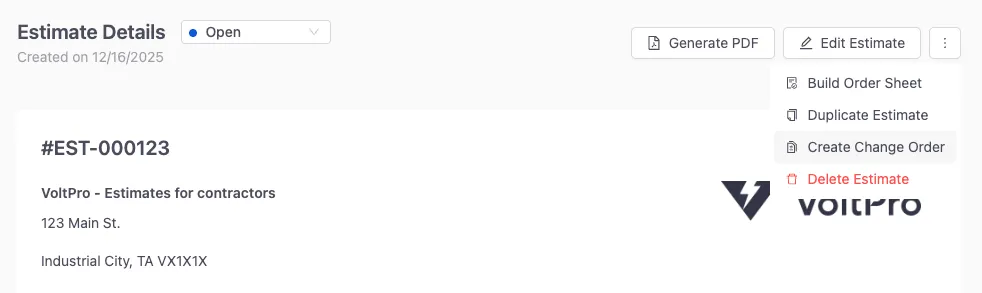
Creating a Change Order
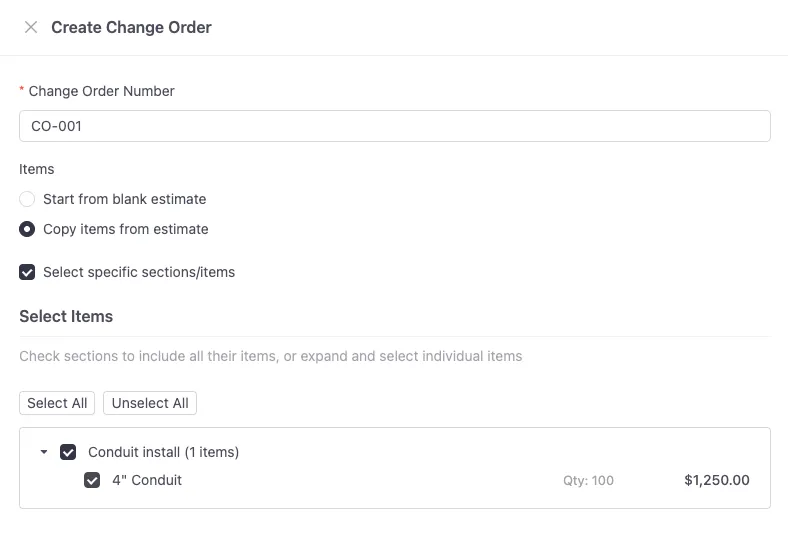
From any base estimate, you can create a new change order. You choose whether to start blank or copy scope from the base estimate. If you copy, a tree view lets you pull in specific sections and items (or everything at once), so you never carry over scope you don’t need.
Acceptance Rules
Change orders follow a deliberate approval sequence. You can’t accept a CO until the parent base estimate is accepted first.
Once any CO on an estimate is accepted, the base estimate’s status locks. That’s intentional. It’s what prevents the status drift that causes billing disputes and out-of-sync paperwork.
Viewing Change Orders and Your Project Total
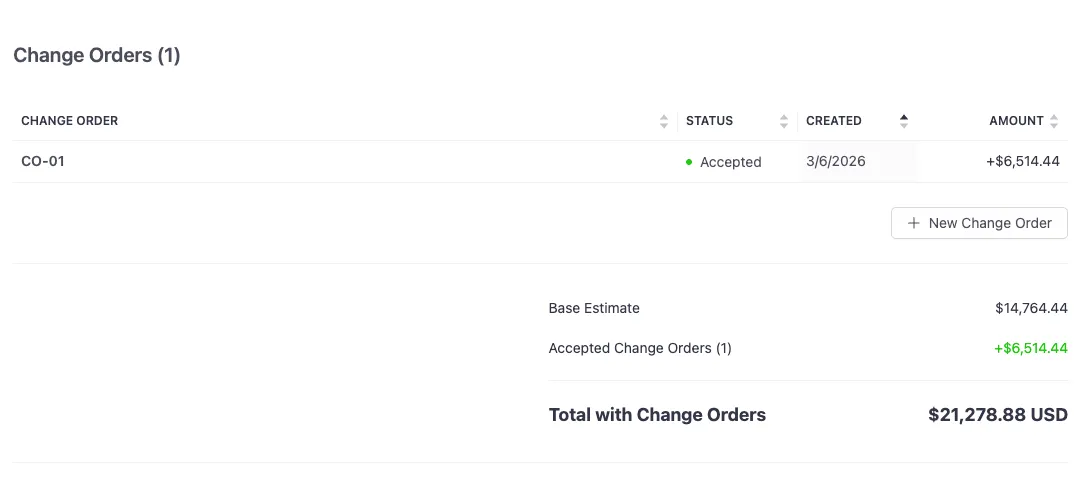
Once you have at least one change order, a Change Orders table appears on the base estimate detail page. It shows CO number, status, created date, and amount.
Below the table, a project total summary aggregates the base estimate and all accepted change order amounts into a single running total. That number is what you actually built, and what you actually get paid for.
Auto-Calculate Labor in the Add Assembly Modal
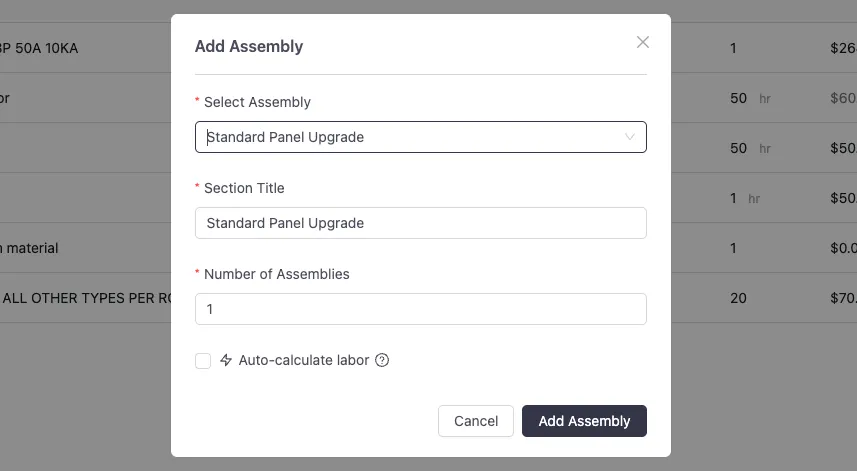
When you apply an assembly to an estimate, VoltPro now checks whether that assembly includes materials with labor calculations. If it does, an Auto-calculate labor option appears in the Add Assembly modal before you submit.
Enable it, and VoltPro generates the corresponding labor line items alongside your material items in the new section. It pulls your organization’s default labor rate and labor cost from Settings, so you get the right numbers without any manual arithmetic.
These updates are live now. Log in and give them a try, especially if you’ve been juggling change order tracking outside VoltPro.
Log in and explore the updates →
Questions or feedback? Email us at support@getvoltpro.com. We read every message.
Frequently Asked Questions
Can I create a change order before the base estimate is accepted?
Yes. You can create and edit a change order at any stage. You just can’t accept it until the parent base estimate is accepted first. It follows the same approval sequence you’d expect in the field.
Does accepting a change order change the base estimate total?
It doesn’t modify the base estimate itself. Instead, the Project Total Summary adds your accepted CO amounts on top of the base. You always see the base and COs as separate line items, with the combined total at the bottom.
Where does the labor rate come from when I use Auto-Calculate Labor?
VoltPro pulls your organization’s default labor rate and default labor cost from Settings. If you haven’t set those yet, follow these steps to do that first. The auto-calculation uses exactly what’s saved there.