

Two big updates this month. You can now take an existing estimate spreadsheet and upload it straight into the VoltPro estimate builder. And QuickBooks Online sync is live in beta.
What’s new this month:
- Upload your existing estimate spreadsheet directly into the VoltPro estimate builder
- Sections, line items, prices, and quantities all carry over
- Re-import only the rows that need fixing, not the whole sheet
- Sync customers, estimates, and chart of accounts with QuickBooks Online (Beta)
Upload Your Estimate Spreadsheet Straight Into VoltPro
Most contractors we talk to already estimate in Excel or Google Sheets before a job ever lands in VoltPro. Until now, getting those numbers in meant retyping every row by hand. That’s done.
Take the estimate spreadsheet you already built, upload it into the VoltPro estimate builder, and your line items, sections, prices, and quantities come over in one shot. From there you’re a few clicks away from a branded, client-ready proposal. No rebuild. No catalog setup. No retyping.
Know Your Margin Before the Estimate Leaves Your Desk
The time savings are the obvious win. The bigger one is what happens to your numbers once they’re in VoltPro.
A spreadsheet shows you a total. It doesn’t show you whether that total makes you money. Markup is guesswork without a live cost breakdown.
The moment your estimate is in the builder, VoltPro shows you a visual breakdown of materials cost, labor cost, and profit, updated in real time as you make changes. Bump a markup, swap a material, add a section, and your margin updates with it. Every estimate goes out with certainty, not a hunch.
How the Import Works
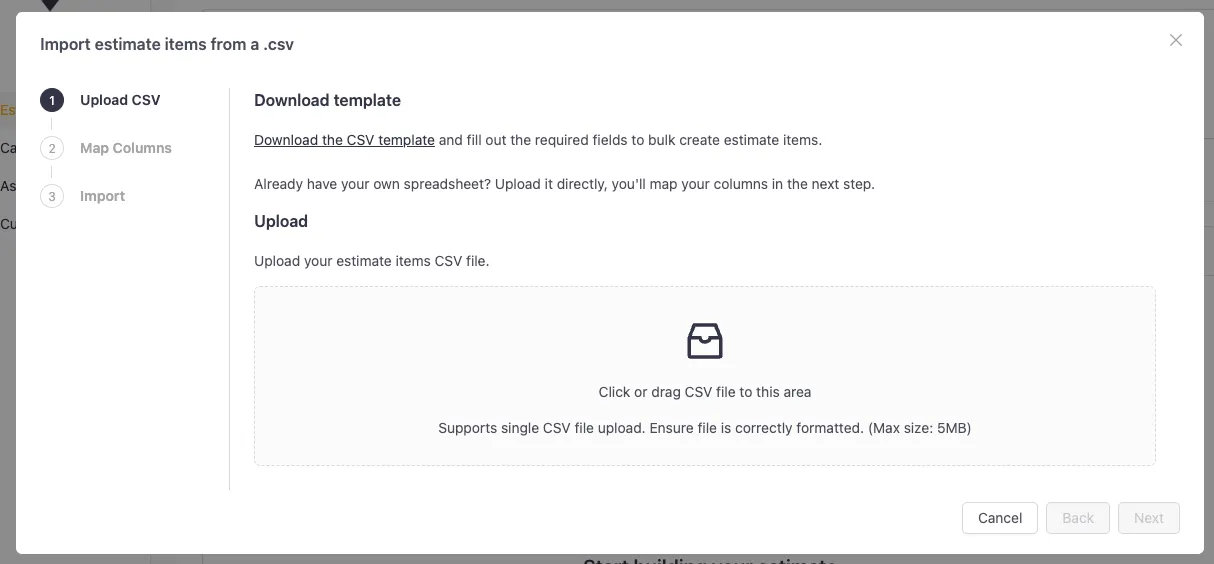
The importer is a three-step modal. It’s straightforward once you’ve been through it once.
Step 1: Upload your file. Drag and drop your CSV onto the upload area. If you want a clean starting point, download VoltPro’s template first. It has the column headers already set up, which makes the next step faster.
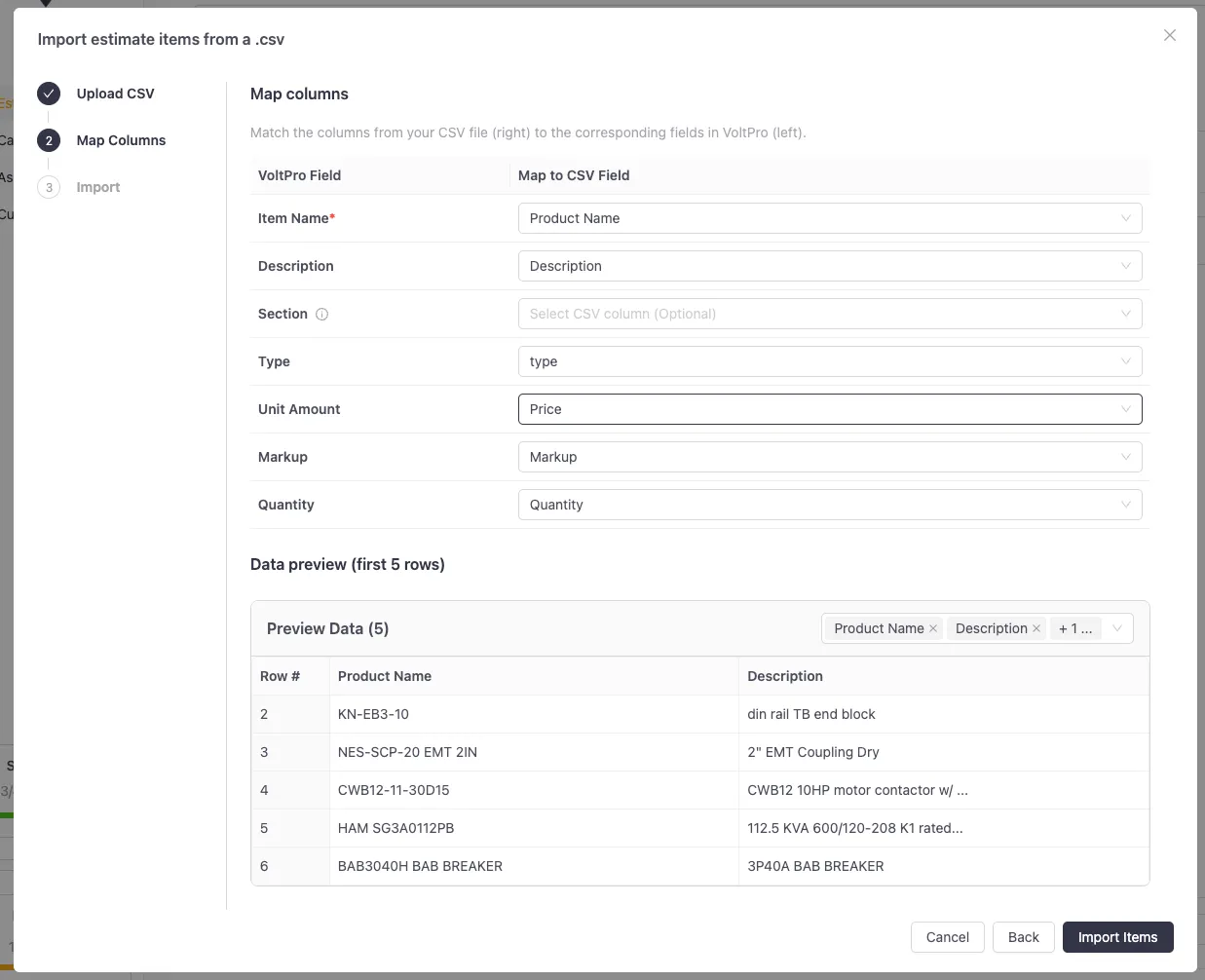
Step 2: Map your columns. VoltPro reads your headers and asks you to match each one to a VoltPro field: Item Name, Description, Section, Type, Unit Amount, Markup, and Quantity. A live preview shows the first several rows with your mapping applied so you can confirm the numbers look right before you commit. Item Name is the only required field.
Step 3: Run the import. A progress bar tracks the job. It runs in the background, so you can close the modal and keep working. When it finishes, you see a summary: total rows processed, skipped, and failed. Failed rows can be downloaded as a CSV, corrected in your spreadsheet, and re-uploaded. You only fix what broke.
Sections Carry Over
If your spreadsheet has a column for section or category, map it to the Section field. Rows that share a section name get grouped together on the estimate. If a section name in your spreadsheet doesn’t exist yet on the estimate, VoltPro creates it. Skip the Section mapping and everything lands under “Imported Items” instead.
For the full walkthrough, see the help center article. For a tour of how the builder tracks profit as you go, see the estimate builder feature page.
QuickBooks Online Integration (Beta)
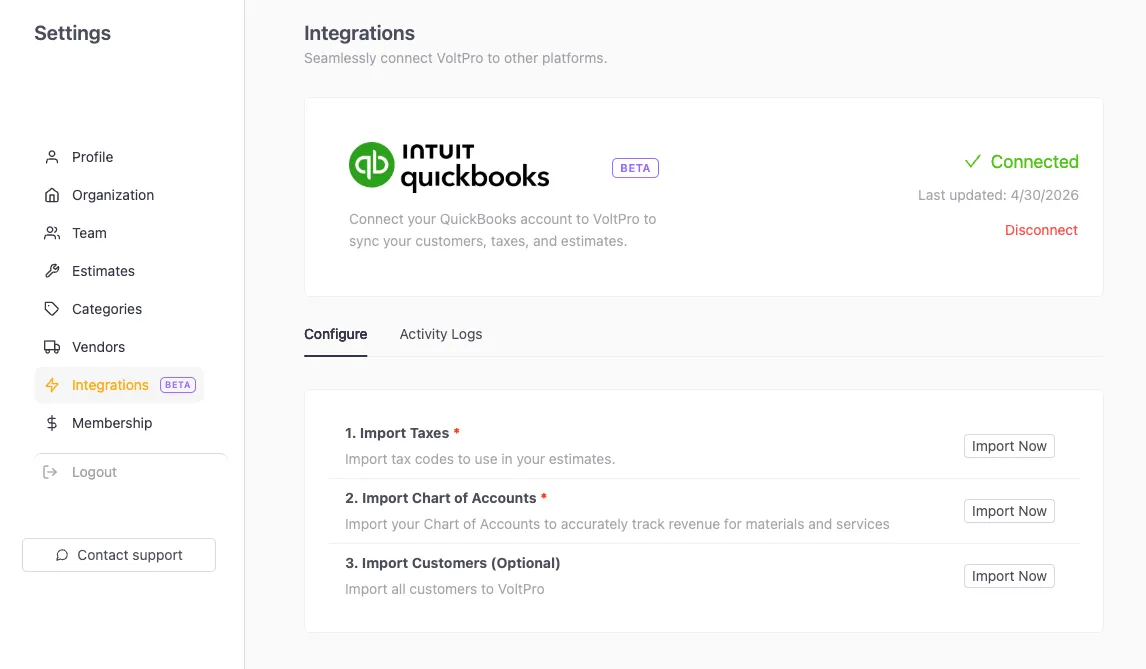
We’re rolling out QuickBooks Online sync in beta. If double-entry between VoltPro and QuickBooks has been eating time, this is the fix.
Here’s what syncs:
- Customers. Import your QuickBooks customers in one click. After the initial sync, changes in either system stay in sync automatically.
- Estimates. Send estimates from VoltPro to QuickBooks with full line-item detail, taxes, and discounts included.
- Chart of accounts. Import your QuickBooks account and sub-account hierarchy into VoltPro.
- Tax codes. Tax codes sync automatically. US automated sales tax and Canadian manual tax codes are both supported.
We’re calling this beta because we want real-world feedback before we call it done. If you hit any rough edges, reach out at support@getvoltpro.com. We read every message.
For a full breakdown of what syncs and how it works, see the QuickBooks integration page.
Other Updates
Plus a round of small fixes and UI polish across the estimate editor, proposal preview, and settings pages. All based on feedback from contractors using VoltPro every day.
Both updates are live now. Log in and give them a try.
Log in and explore the updates →
Frequently Asked Questions
Can I import from Excel, or does it have to be a CSV?
VoltPro’s importer accepts CSV files. If your estimate is in Excel or Google Sheets, export it as a CSV first, then upload it. Most spreadsheet tools have a “Download as CSV” or “Save as CSV” option.
What happens if some rows fail during import?
When the import finishes, VoltPro shows you a summary with processed, skipped, and failed counts. You can download the failed rows as a CSV, fix them in your spreadsheet, and re-upload that smaller file. You don’t need to re-import the whole sheet.
Is the QuickBooks integration available to all VoltPro accounts?
Yes, it’s available to all accounts during the beta period. Connect your QuickBooks account from the Integrations section in Settings. If you run into issues, email support@getvoltpro.com and we’ll help you get sorted.